Mac users preparing a sharing copy · 6 min read
HEIC to JPEG before a privacy check: export, inspect and verify
Export a HEIC photo as JPEG on Mac, keep the original private, inspect the result, then clean and verify the exact copy you plan to share.
Published · Updated
Start with a supported sharing copy
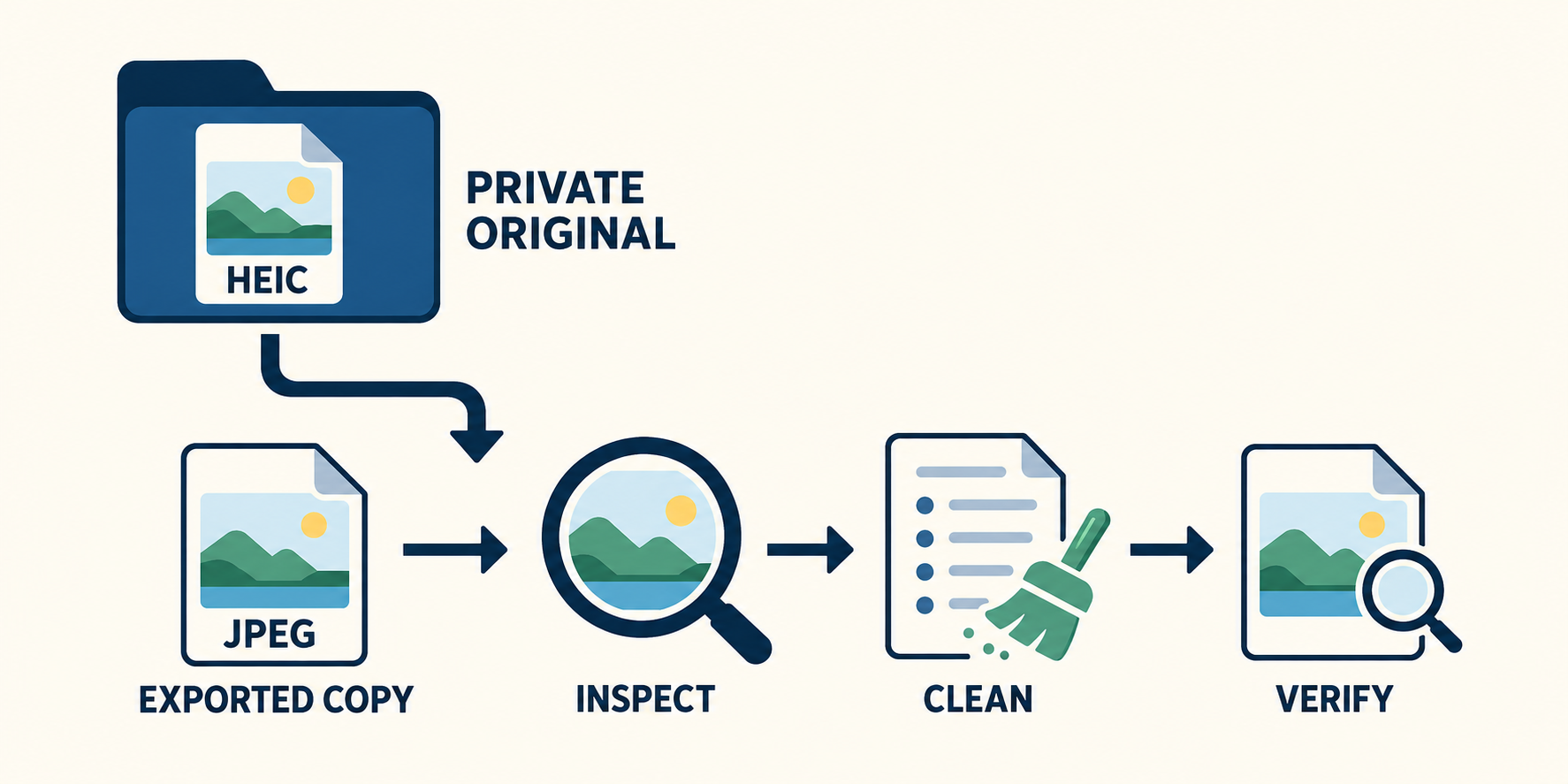
If your photo is HEIC, export a separate JPEG before using Photo Privacy Lab. The tool accepts JPEG, PNG and static WebP, up to 10 MB per file, but not HEIC or video. Check the supported image formats before starting.
Treat conversion as a compatibility step, not a privacy result. Preserve the private original, inspect the exported picture, clean the supported copy and verify the exact file you intend to send. A different filename or format is not evidence that hidden information has been removed.
Keep the original out of the sharing workflow
Before exporting, decide where the private original belongs and where the sharing copy will go. Use separate folders or another clear separation that you can recognise when attaching a file. Avoid names that disclose something you were trying to hide.
For example, keep the HEIC in your private photo library and export the working JPEG into a folder used only for the current handoff. Do not attach that whole folder by habit. The point is to make choosing the wrong file harder, not to treat a folder name as a security control.
Work on the copy rather than replacing your only original. This gives you a reference for checking the result and a way to start again if the exported image is unsuitable.
Export a JPEG with Preview
Apple's Preview conversion instructions describe this route:
- Open the HEIC file in Preview on your Mac.
- Choose File > Export.
- In Format, select JPEG and adjust quality if needed.
- Give the copy a distinct name and destination, then choose Save.
Open the saved file from that destination before continuing. Do not rely on the image that remains open in the original window. If a label differs on your Mac, use the version selector in Apple's guide rather than guessing from an old screenshot.
Or export from Photos in a selected format
For a picture in Photos, Apple's Photos export guide documents a selected-format export:
- Select the photo, then choose File > Export > Export [number] Photos.
- Set Photo Kind to JPEG. Expand the options if you need to choose quality, colour profile or size.
- Choose the naming options you need, click Export, choose a destination and click Export again.
For this workflow, use the selected-format route, not Export Unmodified Original. The latter preserves the original format rather than making the JPEG you need here. Apple also documents exporting a Live Photo as a still image. This guide checks that still derivative only, not its motion or audio.
Inspect the exported picture before cleaning
Open the JPEG and compare it with your private reference. Look at the whole image, then zoom in on details that matter to its purpose. Is the picture upright? Is the crop right? Is necessary text readable? Are colours and fine details acceptable for the intended use?
If the result is wrong, return to the original and try a different export setting. Check the new copy's actual file size against the 10 MB limit. Do not assume it fits because the original did. If you reduce dimensions or quality, inspect that result again rather than accepting a smaller file on size alone.
Keep visual inspection separate from metadata inspection. A picture can look right while still needing a hidden-data check, and a clean report does not judge whether the scene itself reveals too much.
Clean the supported copy, then verify the output
Export settings are not a substitute for examining the resulting file. Start with the JPEG you actually saved, review the findings and create a cleaned sharing copy when needed. Photo Privacy Lab's technical methodology describes the supported metadata checks and cleaning boundary.
After downloading the result, open that exact file in Verify a Clean Photo. Review the reported categories, including location, time, device, author, comments and embedded previews. Do not rescan the private HEIC or an earlier JPEG and treat that as proof about the final download.
Use a simple stopping rule: if the file you plan to attach is not the one you checked, verification is unfinished. A later edit or export should send you back to the final-copy check. Keep intermediate exports out of the attachment selection so they are not mistaken for the checked result.
Review visible clues and make the handoff deliberate
Read the site's limitations alongside the report. Hidden-data checks do not assess visible clues such as faces, signs or reflections, and they do not certify that a picture is anonymous. Decide whether to crop or redact sensitive content, or whether not sharing is the better choice. Inspect and verify any newly edited output.
When ready, select only the checked derivative for the handoff. Do not include the private original, extra exports or unrelated files just because they are beside it. If someone needs the original instead, that is a different sharing decision and this JPEG check does not cover it.
Sources and further reading
Put it into practice
Check the exact photo you plan to share
The scanner works locally and does not add your filename or extracted metadata to an analytics request.
Verify your final sharing copy